Importing clients into AdviserCOT
1. Preparing your client data
To import your clients into AdviserCOT, you need to prepare your client data in a CSV file format. The CSV file should include the following columns below.
Only the common name column is required. All other columns are optional, but we recommend including all your relevant fields to make the most of AdviserCOT's features, especially "Stage" and "Tier".
Download template (.csv)| Column name | Format / description Scroll to right for example | Example |
|---|---|---|
Common Name(required) | How you usually refer to the client. | Elise |
Tier | How important the client is to you professionally. Use a single letter: A, B, C, D. | A |
Stage | The current stage of the client relationship. Use one of the following values (case-insensitive). If not entered, defaults to Prospect.
| prospect |
On Hold | Whether to omit the client from your follow-up schedule. If on hold, AdviserCOT will not notify you to follow up with them (unless a schedule is set specifically for them). Suitable values are Yes, No, Y, N, true, false, On Hold and Not on Hold (all case-insensitive). A blank or absent value will import the client as not on hold (thereby including them in your schedule). | No |
Full name | The client’s full name as per their NRIC or passport. | Elise Tan Mei Ling |
NRIC/FIN | The client’s NRIC or FIN number. | S1234567A |
Email | The client’s email address. | starrygirl95@hotmail.com |
Gender | The client’s gender. Single-letter is recommended. | F |
Date of birth | The client’s date of birth in YYYY-MM-DD format. | 1995-01-01 |
Phone number | The client’s phone number, including country code. | +6581234567 |
Home address | The client’s address, including postal code. | 123 Orchard Road, #01-01, Singapore 238888 |
Occupation | The client’s occupation or job title. | Software Engineer |
Company Name | The name of the company the client works in, if any. | Tech Innovations Pte Ltd |
Postal code | The postal code of the client’s home address. | 238888 |
Standing memo | Any standing instructions or notes for the client. | Call every 1 month to check in. Client prefers WhatsApp. |
ALL other columns in the CSV you provide (that don't match the above) can be imported as custom fields into AdviserCOT.
You can use your spreadsheet of clients and change/modify the column headers to match the ones above, or use the template provided above to fill in your client data.
Technical details for extra clarity ✨
(check here if you encounter issues)
- The CSV file should be UTF-8 encoded.
- The CSV file should use commas (
,) as the delimiter. - The CSV file should enquote text fields with double quotes (
") if they contain commas or newlines. If you are using a spreadsheet application like Excel or Google Sheets, this is usually handled automatically when you save or export the file as CSV. - The first row of the CSV file should contain the column headers as shown in the table above.
- All column headers are case-insensitive. You can also omit spaces (ie. Home address can be HOME ADDRESS, HomEAddReSS, homeAddress etc).
2. Importing your client data
You can do this on both the web and mobile web versions of AdviserCOT.
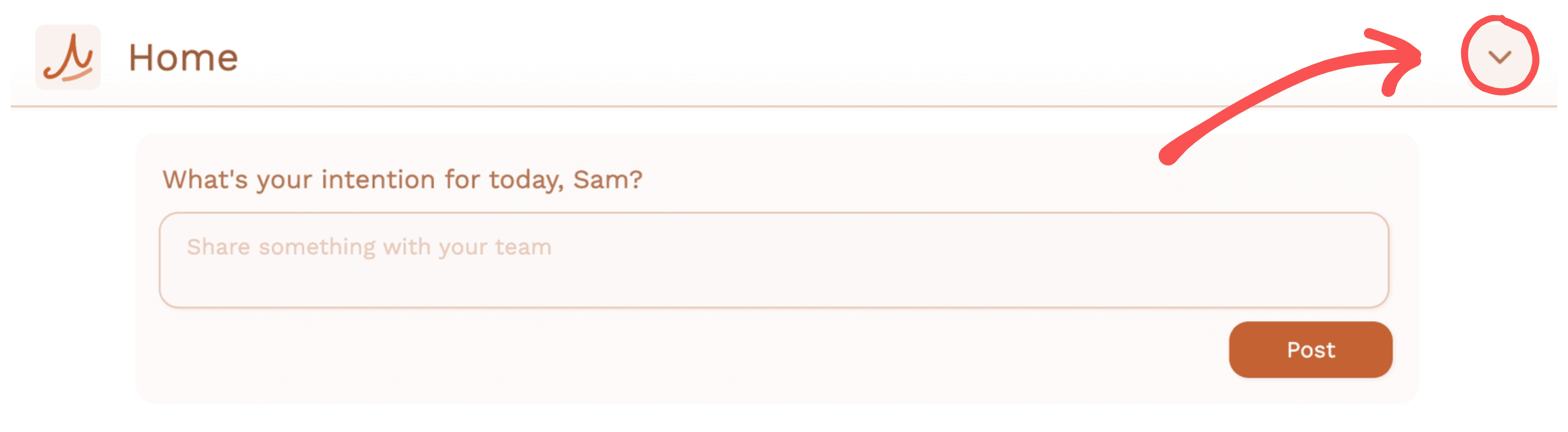
Once you have prepared your CSV file, log in to AdviserCOT, and tap or click on the menu dropdown icon in the top right corner.
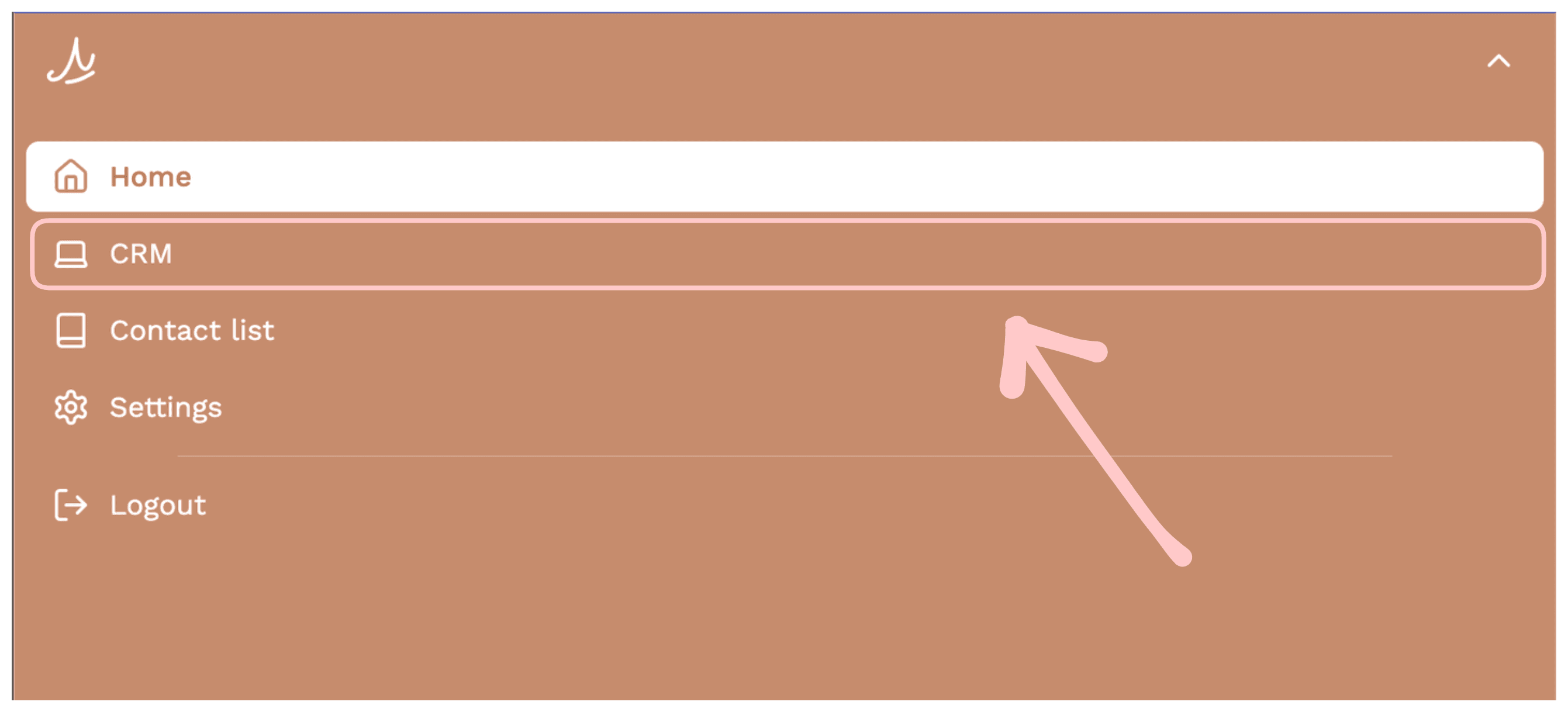
Tap or click on "CRM" in the main menu to go to the CRM.
In the CRM, click or tap on this import button in the top right corner. It may have been updated to a slightly different design at the time you read this but it should look something like this:

Then on the window that appears, click or tap on the "Choose file" button to select your CSV file from your device.

Then, if all goes well, a preview of your data will be shown.
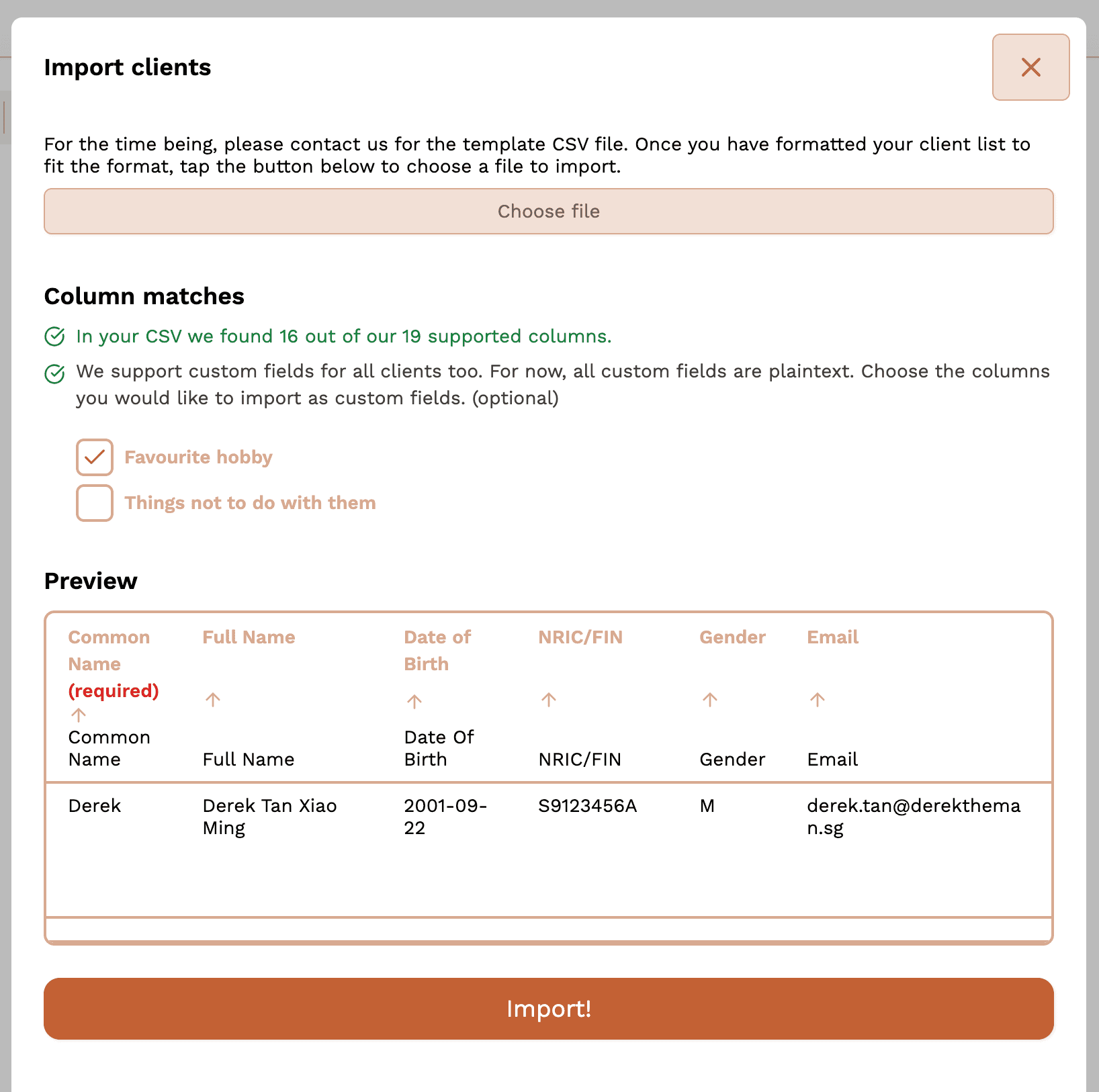
Please:-
- ensure that the mappings are correct.
- ensure that the values of the previewed data are correct.
- the table is scrollable horizontally so you can check all the columns.
- If you have custom fields, check the custom fields you would like to import. If you do not wish to import them, you can uncheck them. If a custom field you wanted to import is not shown, change the column header in your CSV file to something not used in AdviserCOT (see the "Technical details for extra clarity" section above at the end of section 1).
Once done, click or tap on the "Import" button to start the import process.
If you have a large number of clients, the import process may take some time. You will be notified when the import is complete.
If you encounter any issues during the import process, please feel free to reach out to us.